
Getting Started
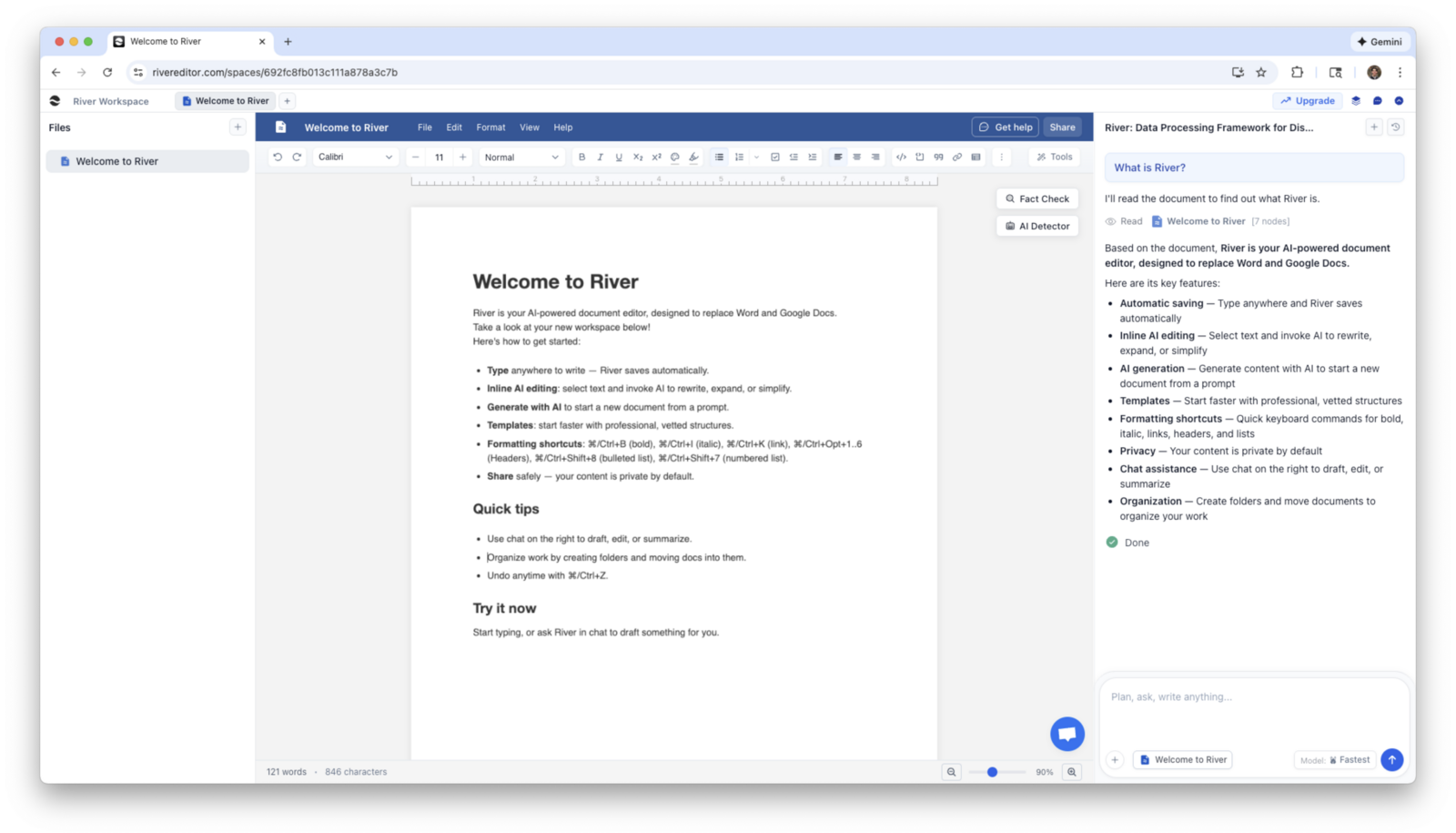
River is an AI workspace built around your real work. The AI writes, edits, and researches right inside your documents, sheets, and projects. Here's how to get started.
What's in this guide
Quick Start
Up and running in under 2 minutes
Sign up for free
Go to rivereditor.com and click “Start Free”. Sign in with Google or create an account with email.
Create your first document
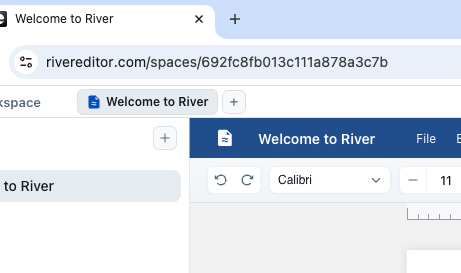
Click the + button in the top tab bar and pick what to make: a doc, sheet, slides, and more. Or just tell River what you need and it builds it for you.
Start working with AI
Use the AI chat on the right to write, edit, research, or take action. It works directly inside your document, so there's nothing to copy and paste.
“Write a project proposal for our Q2 marketing initiative”See River in Action
Watch co-founder Brian give a quick tour of what River can do
Creating & Managing Documents
Multiple ways to create
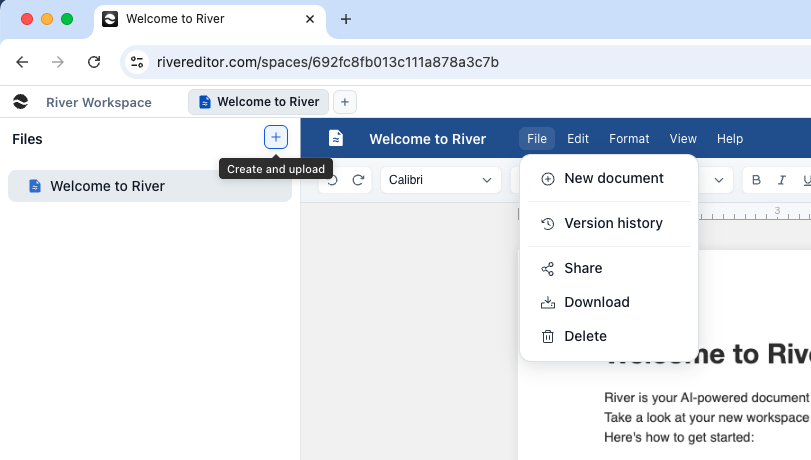
- Click the + button in the top tabs and choose a doc, sheet, slides, and more
- Ask River: “Create a new document called Project Brief”
- Use File → New document from the menu
Organize with folders
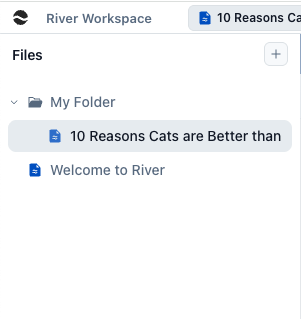
Group your work by project, client, or team. Create folders in the sidebar and drag documents in to structure your workspace.
AI Chat & Writing
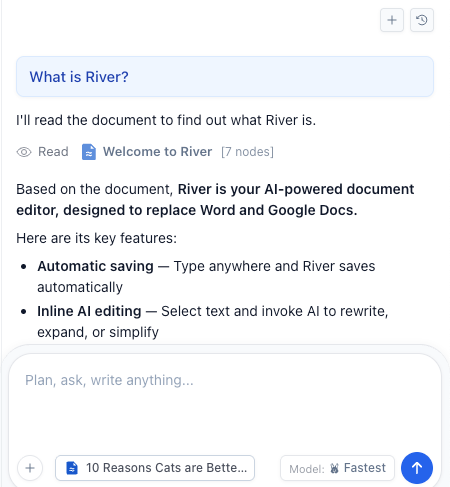
An AI that works inside your document, not beside it
Writing
Ask the AI to write drafts, sections, or entire documents. It writes directly into your doc.
Editing
Ask the AI to rewrite, expand, or change the tone of any section. Just describe what you want.
Commenting
Ask the AI to review your work and add inline comments with suggestions and feedback.
Chat History
All conversations are saved automatically. Return to any thread and pick up where you left off.
Things you can ask
“Draft an executive summary for this report”“Review this proposal and add comments with suggestions”“Rewrite the intro in a more formal tone”“Summarize this PDF I just uploaded”Adding Context
Work with your actual source materials, not just prompts
Drop in PDFs and Word docs
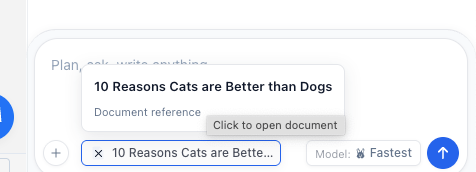
Drag files into the chat, or use the + below the input. River reads the content and uses it as reference.
Reference anything in your workspace
Use the + or @ to pull in your other docs, sheets, and files. River can read and even edit several at once, so your work stays consistent.
Copy and paste text
Paste excerpts from any source straight into the chat, and River uses them as reference for your writing.
AI Voice & Style
Keep your voice and brand consistent across everything you write
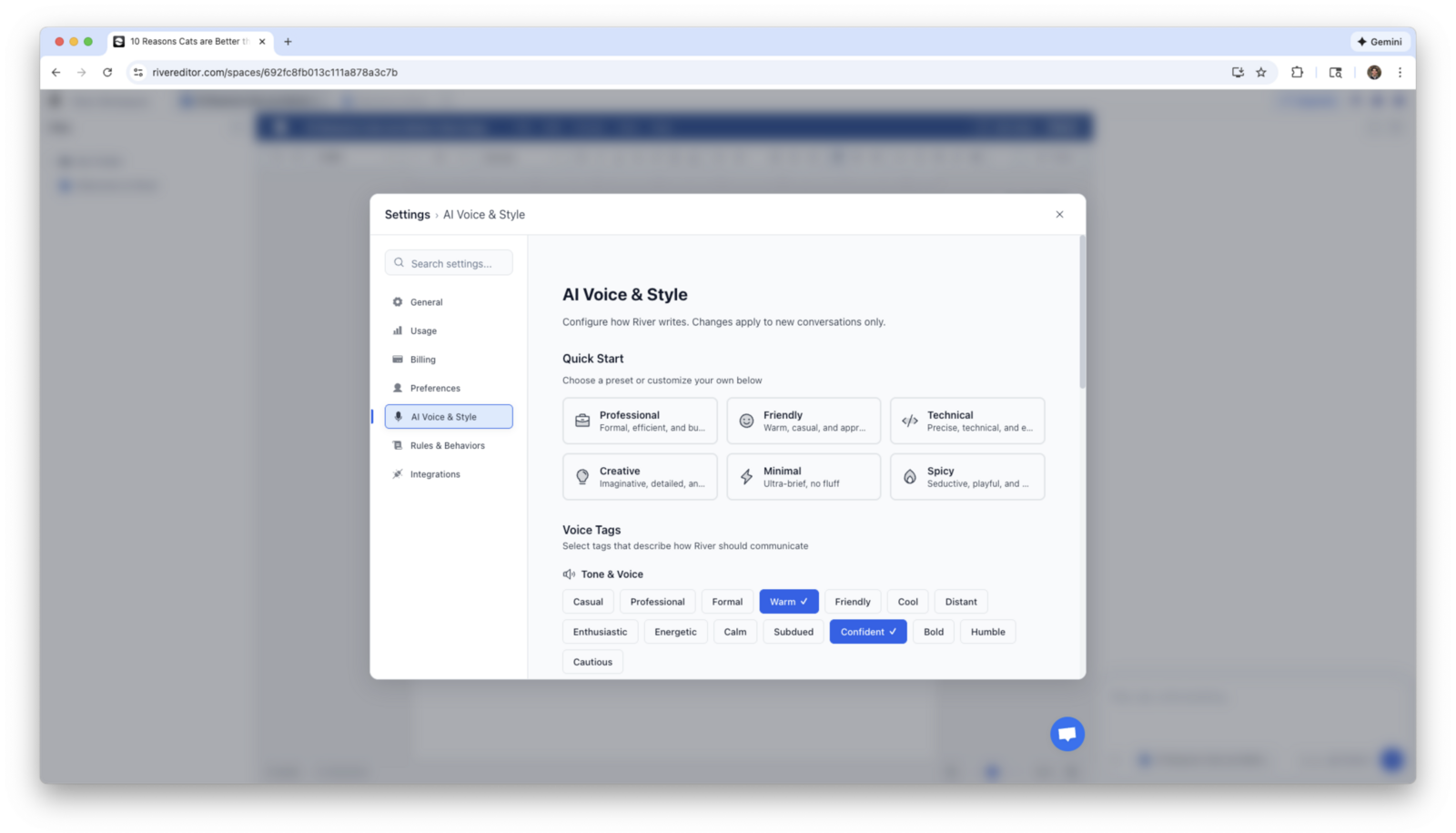
Customize how River writes
Open the system menu in the top-left, choose Settings, then AI Voice & Style. Start from a quick preset, then fine-tune with detailed tags:
Tags span tone, grammar, punctuation, formatting, technical level, and even language. For anything they don't cover, add your own guidance in plain language.
Choosing AI Models
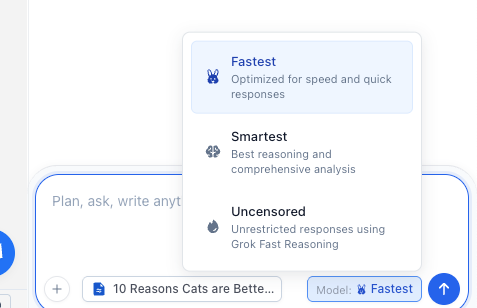
Pick the right brain for the job
Whiz
Powered by Claude Sonnet. Fast, reliable, and capable across almost everything. The best default for everyday work.
Genius
Powered by Claude Opus. Deep reasoning for your most complex, demanding, and high-stakes tasks.
Uncensored
Powered by Grok. More creative freedom for bold, uninhibited fiction and content without heavy guardrails.
Local
Run models privately on your own device with Ollama. Zero cloud cost and fully offline. Available in the River desktop app.
Document Tools
Formatting, export, and fact-checking built right into the ribbon
Formatting Ribbon
Full toolbar with fonts, headings (H1-H6), lists, alignment, text colors, highlights, tables, and more.
Export Options
Download as Word (.docx), PDF, Markdown, or plain text. Access it from the File menu.
Fact Check
River reads your document, checks the factual claims, and reports anything that looks wrong or unverified.
AI Detector
Scan your draft to see which passages might read as AI-generated, so you can rework them in your own voice.

Sharing & Collaboration
Share your work
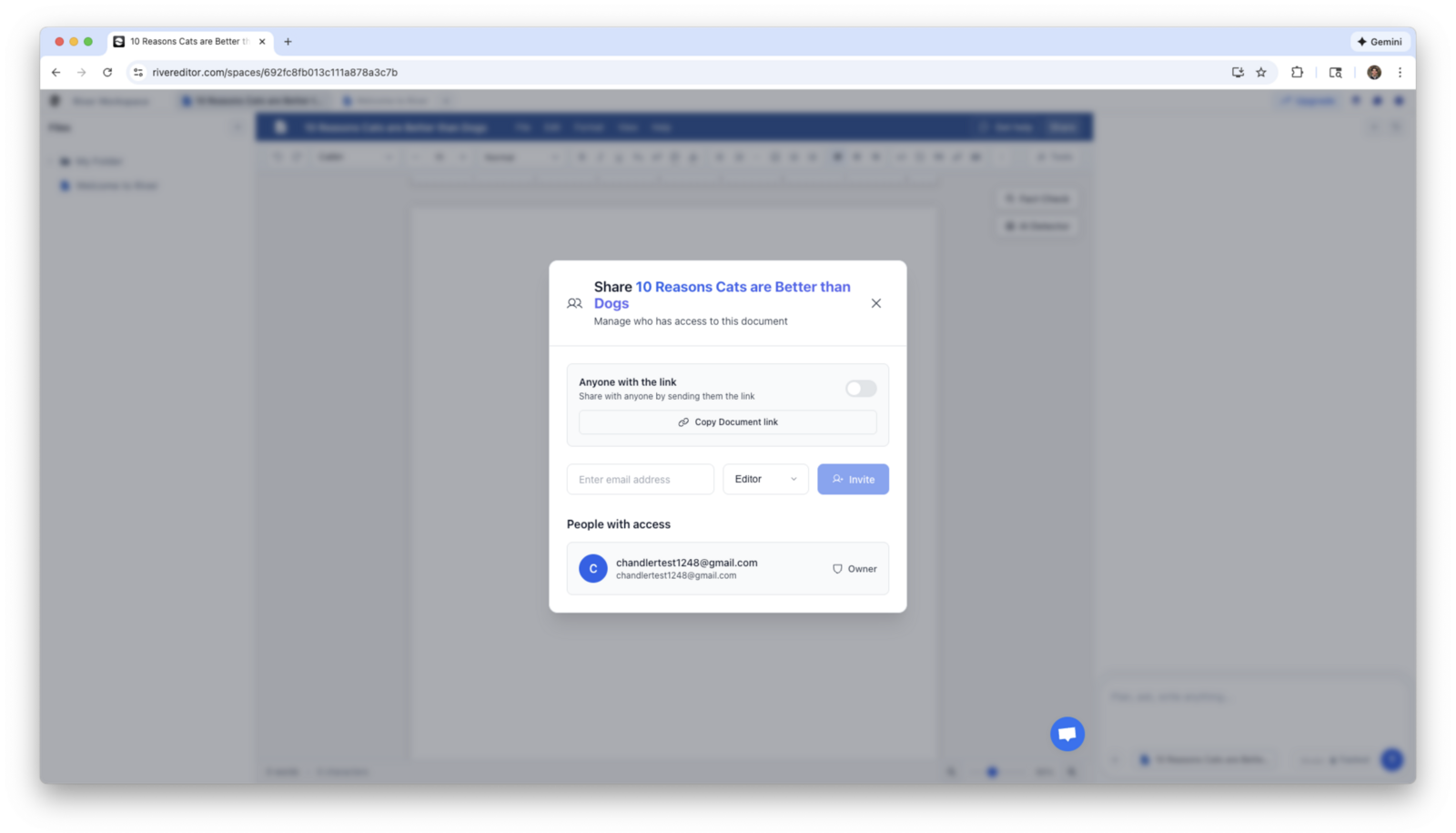
Click the Share button in the top right to collaborate with others:
- Invite collaborators by entering their email address
- Set each person as a Viewer (read-only) or Editor (can edit)
- Generate a public link to share with anyone
Edits and comments sync in real time, with live cursors for everyone in the document.
More Resources
Tools Library
Explore dozens of specialized AI tools: essay reviewer, fact checker, copyeditor, and more.
Browse toolsBlog
Tips, tutorials, and product updates about River and AI-assisted writing.
Read the blogGet Help
Questions? Email us at chandler@rivereditor.com or use the chat bubble in the app.
We typically respond within hoursReady to do your best work?
Join the people and teams using River to research, write, and ship their best work.
Start Writing Free