Your AI Customer Support Agent
Two separate automations for your support inbox. The Responder sends replies every hour for questions covered by your knowledge base. The Drafter writes drafts in Gmail for the rest. Pick one to run.
Setup takes 5 minutes on River. The GitHub option gives you the raw files to self-host.
Reads your support inbox
Every hour, the enabled automation(s) scan recent inbox threads and filter out newsletters, automated mail, and anything you've already replied to. What's left is the support queue.
Responder: answers what it knows
If you enable it, each customer thread gets checked against your knowledge base. If a question matches an entry, the Responder sends the reply from your Gmail.
Drafter: writes the rest
If you enable it, every other thread worth a personal response gets a draft in Gmail Drafts and a ping in River. You review, edit if needed, and send.
What goes into a reply.
Every reply pulls facts from your knowledge base and voice from your tone-and-style.md. The agent acknowledges the customer, answers the question, and closes with your sign-off.
Reply, line by line.
Left side: the reply being written, one line at a time. Right side: each rule from your tone-and-style.md, marked green as the agent uses it.
Setup in 5 minutes.
The first time you open the space, the agent walks you through a few questions, writes its own memory docs from your answers, asks which automations to enable, and helps you connect Gmail.
- Who you areYour name, role, and company. The agent researches the company online and saves what it finds to
agent-memory.md. - Your toneA default voice (warm, direct, no jargon) you can adjust. Your do/don't rules and sign-off line get saved to
tone-and-style.md. - Your knowledge base3 to 5 questions your customers ask over and over, with how you usually answer each one. Saved to
faq.md; this is what the Responder checks before sending anything automatically. Add more anytime. - Which automation to runPick the Responder or the Drafter — never both. Both ship disabled until you choose. You can swap to the other one later.
- Connect GmailA Connect button appears in the chat. One click opens the Gmail OAuth flow. Skip it and the automations won't be able to read or send.
Where the agent lives.
After setup, the agent runs from a dedicated space in River. Recent replies, recent drafts, and the three docs the agent reads, all in one view.
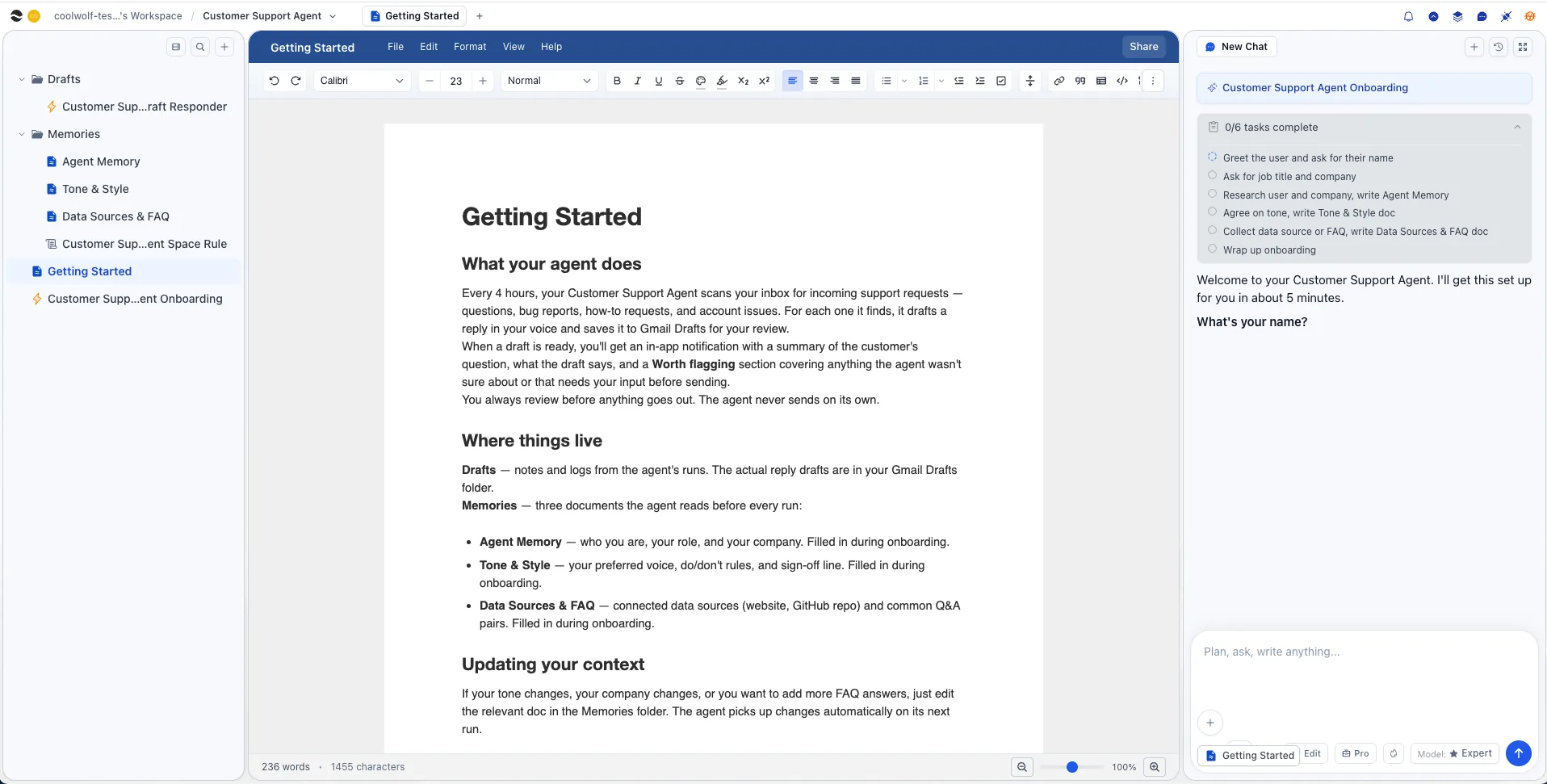
Two ways to install it.
River hosts and runs the automations. Scans run on River's infrastructure every hour. You don't need to keep anything open.
- Click "Get started with River" below
- Sign in or create a free account
- Run through the 5-minute onboarding chat
- Pick which automations to enable when the agent asks
- Click the Connect Gmail button when it appears in chat
Clone the files, drop them into a Claude Project, and run the setup prompt. Works with Claude Pro or Team. No River account needed.
- Clone the
agentsrepo - Create a Claude Project and paste
system-prompt.mdinto Custom Instructions - Run
prompts/setup.mdonce to fill in your memory docs - Upload the three memory docs to Project Knowledge
git clone https://github.com/river-labs-inc/agents.gitSeven files, total.
Same files whether you install via River or clone the repo. All readable Markdown. Open them, edit them, version-control them.
customer-support-responder.mdIndependent send automation. Every hour on the hour, scans the inbox and sends replies from your Gmail for customer questions covered by your knowledge base.customer-support-drafter.mdIndependent draft automation. Every hour, drafts replies in Gmail Drafts for support emails worth a personal response and pings you to review.docs/agent-memory.mdYour name, title, and company context. Written during setup.docs/tone-and-style.mdVoice, do/don't rules, sign-off line. Written during setup.docs/faq.mdYour knowledge base of common customer Q&A. Every new entry expands what the agent can answer automatically.docs/activity-log.mdAn append-only audit trail of every reply the agent has sent and every draft it has created. Both automations read this before each run and refuse to touch any thread that's already in it. This is what prevents double-sends.rules/space-rule.mdRules that apply on every run: read all four docs first, knowledge base is the gate for sending, activity log is the gate against double-sending, never invent facts, never auto-reply to escalations.onboarding-prompt.mdThe setup conversation that runs the first time you open the space.